-
Photoshop Task: How to Photoshop Poster
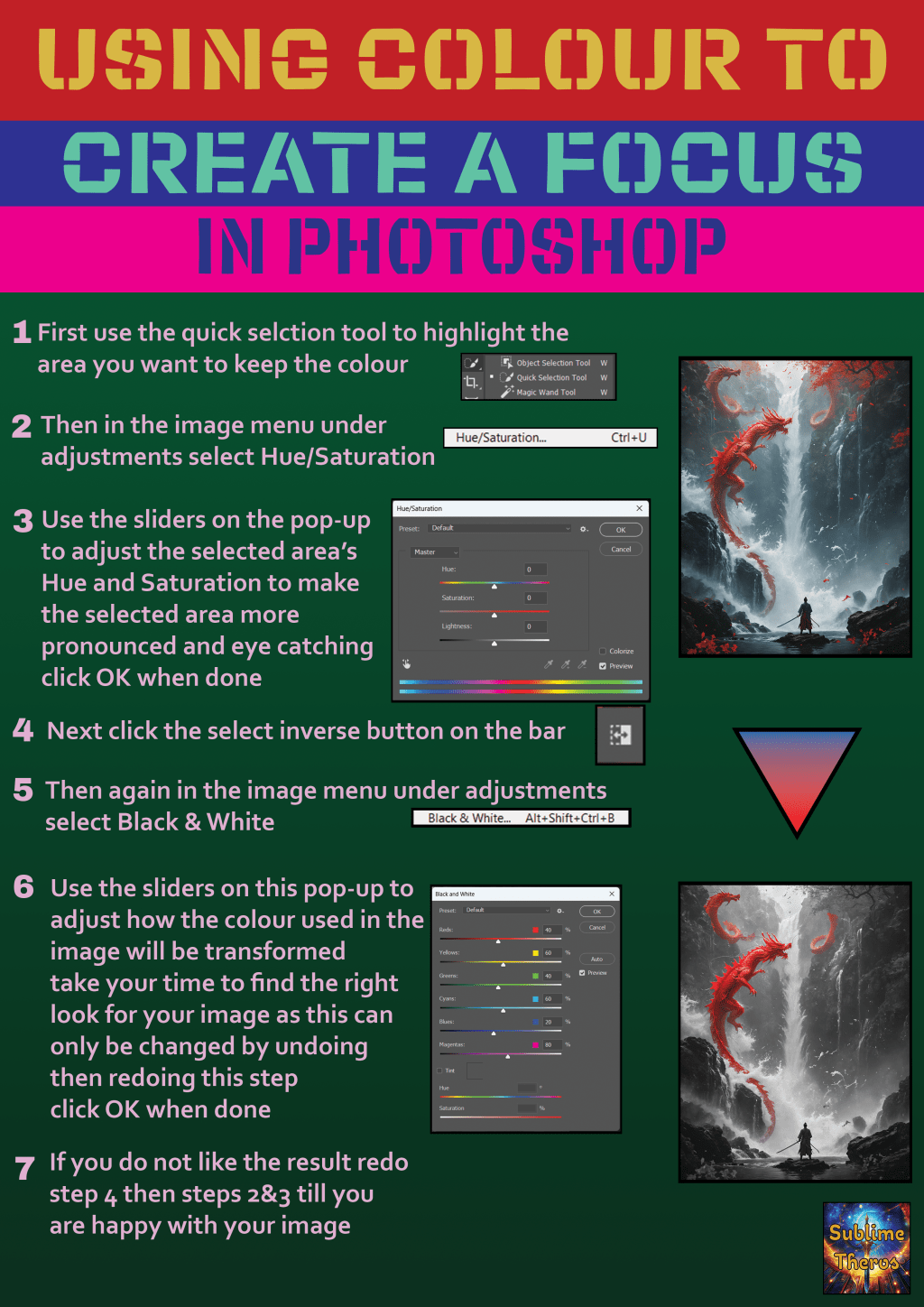
The first task we were given to test our Photoshop skills was to create a poster in Photoshop about one of the tools or techniques we have been taught and practised in the past few weeks. I chose the colour alterations and quick select tools. I titled my poster Using Colour to Create a Focus…
-
Unit 1: Planning & Research: Part 1
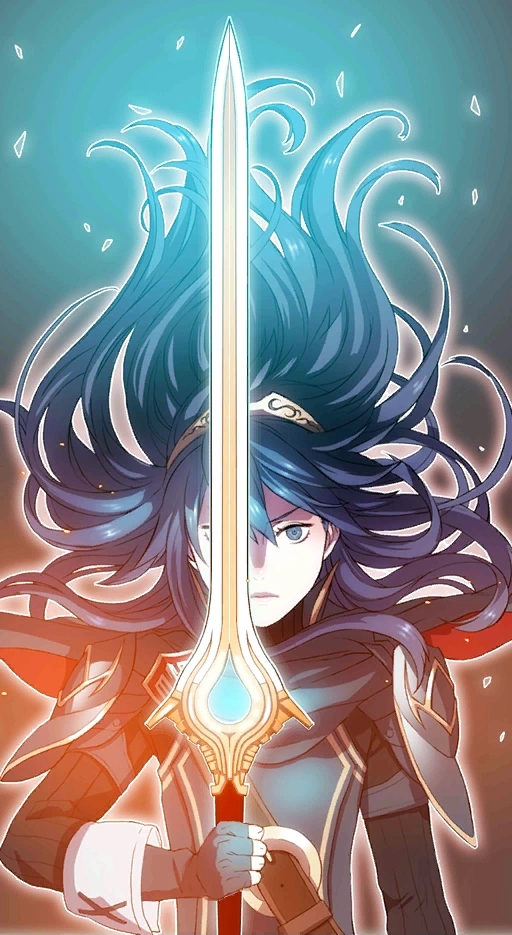
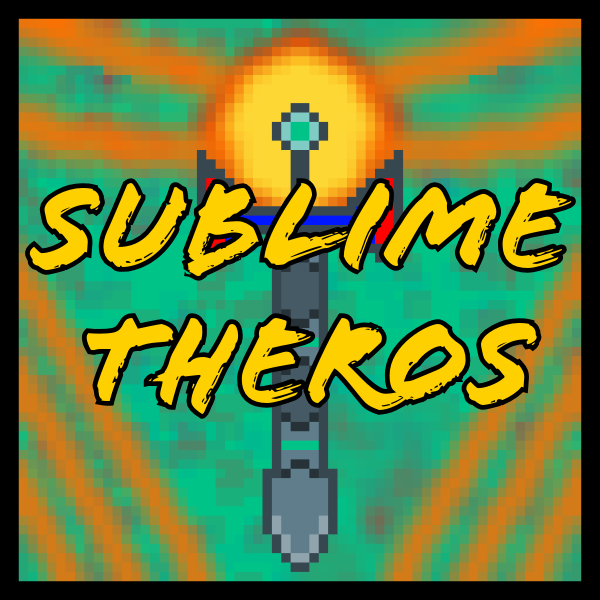
When the assignment was announced I look and saw that one of the options of a model to create was weapons. I immediately wanted to do a weapon as it could be for my D&D group as they have been asking for their own weapons or a reinvention of a weapon from fire emblem, which…
-
BPC Open Events: October 2024

In the past week there has been two open events where the college opened up for perspective student to look around the college and talk to teachers about the curriculum, entry requirements, career paths and support in the classroom. My class was asked for volunteers to help the teachers when the numbers were high and…
-
Professional Practice: Hard & Soft Skills Poster
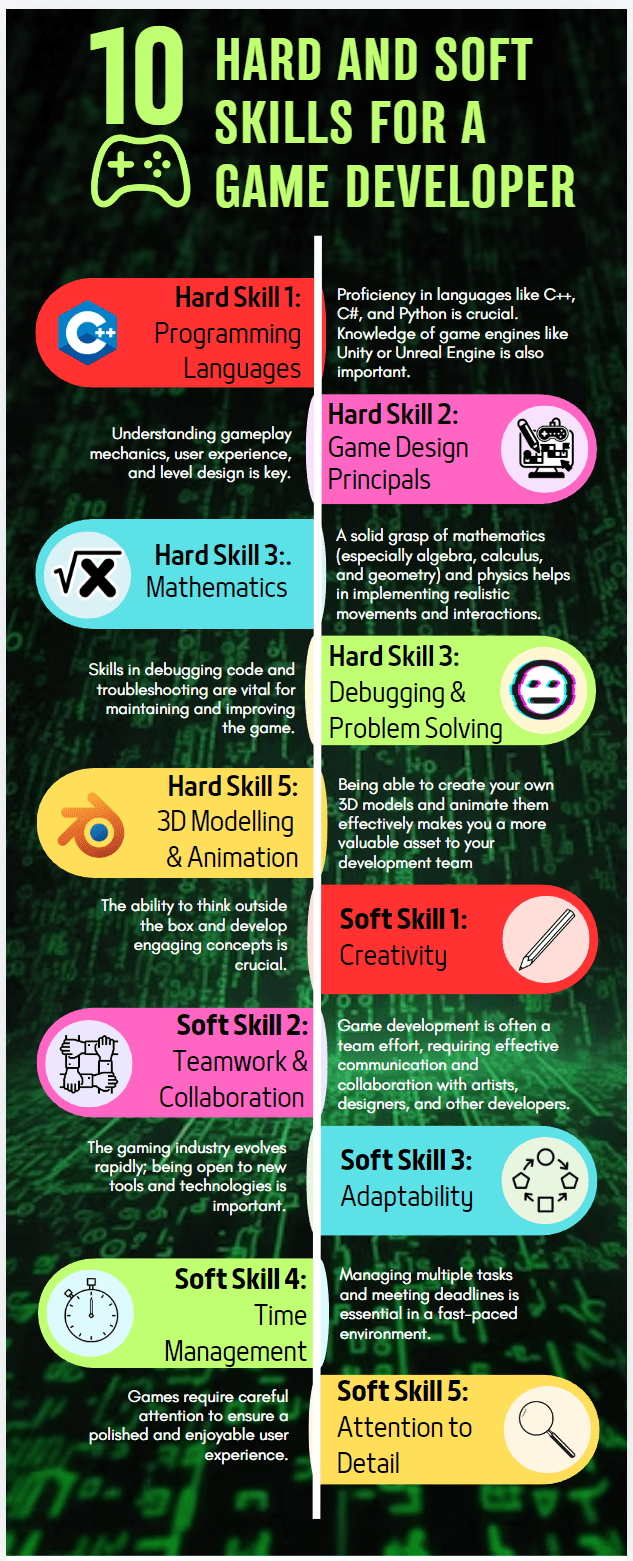
In this lesson we looked at hard and soft skills in our chosen job and then were told to put them into a poster using Canva. I chose Game Developer as I covers a lot of the jobs I want to go into. I felt the most important soft skill was teamwork and collaboration as…
-
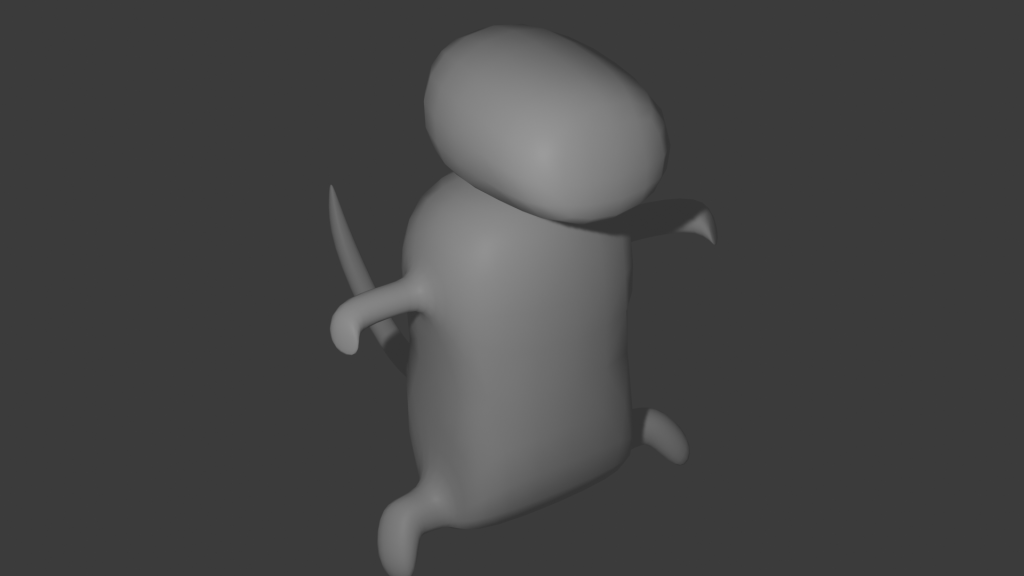
Blender: Body Shaping

Today I tried to create the basic shape of a Charmander in Blender by using a cube as a base then extruding, scaling, rotating and moving until the body was shaped vaguely like a Charmander. I still think I could make some major improvements but I need to understand the software better. To understand the…
-
Blender: Sword Pommel and Grip
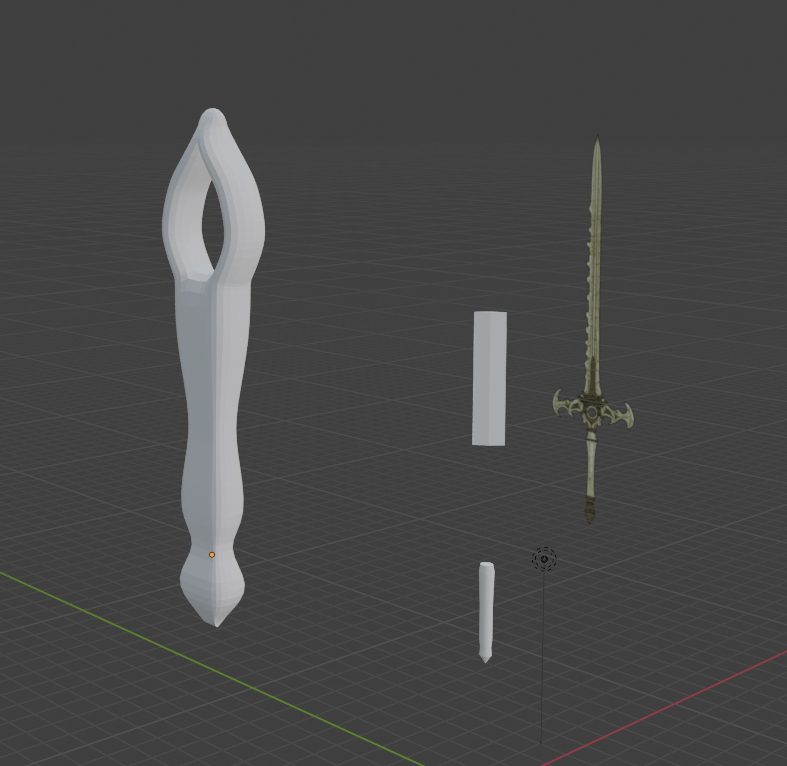
In this session I worked on creating a pommel and grip of a sword using an image of the Sword of the Creator as a reference. I used a modifier to create subdivisions of a cube and used the extrude, scale and rotate tools to shape the pommel and grip. I managed to make some…
-
Photoshop Lesson 6: Quick Select and Colour Alterations
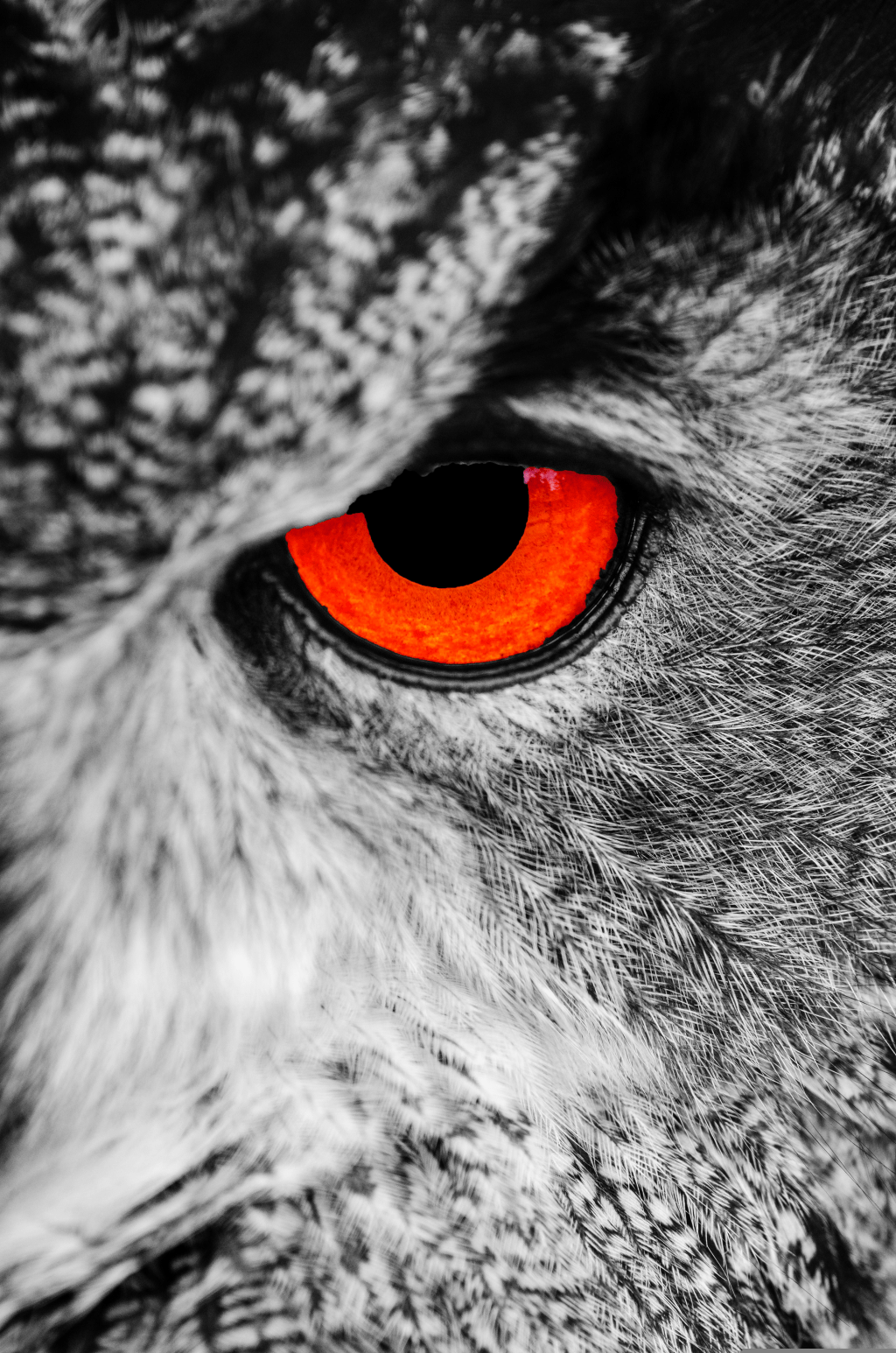
This lesson we were taught how to use the quick selection tool to select an area of the image, then use tools under the adjustments menu to change the colour and contrast to make the selected area pop. Then selecting the inverse and using the black and white tool in the image adjustments menu to…
-
Photoshop Lesson 5: Cloning and Spot Healing tools
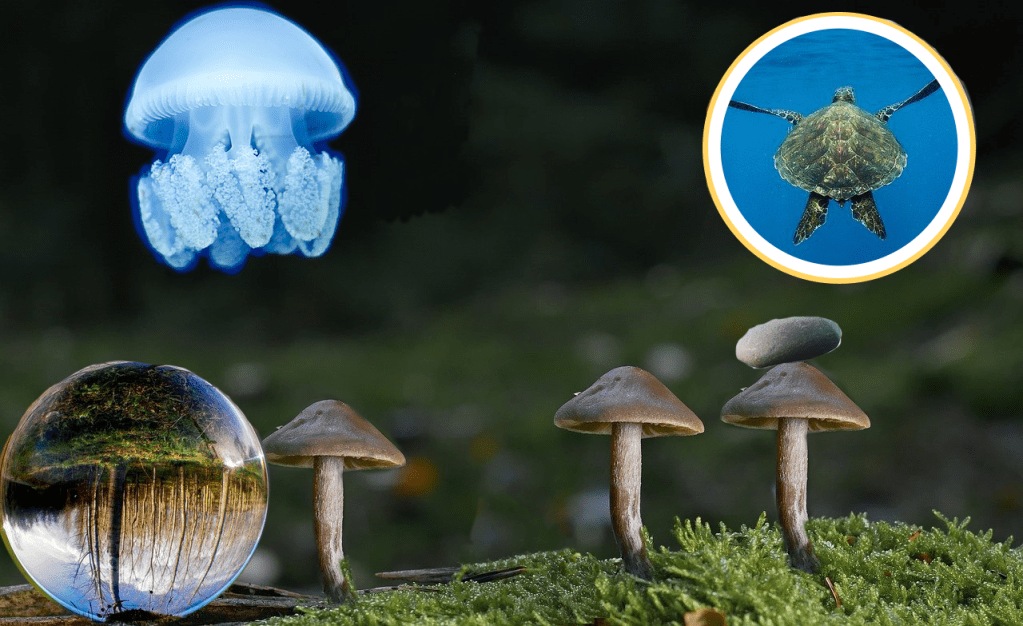
Cloning In this lesson we looked at the Clone Stamp tool and how you can use it to clone images and cover up part of an image. First i used the clone tool to copy a mushroom and then I used it to bring over other images from the other images provided. Spot Healing Next…
-
Photoshop Lesson 4: Masking

In this lesson we looked at masking and how to use it to layer landscape images to change the effect of the image. We were given the sample images of the milky way and a cliff and were told to combine them, then we were told to pick our own images and combine them. I…
-
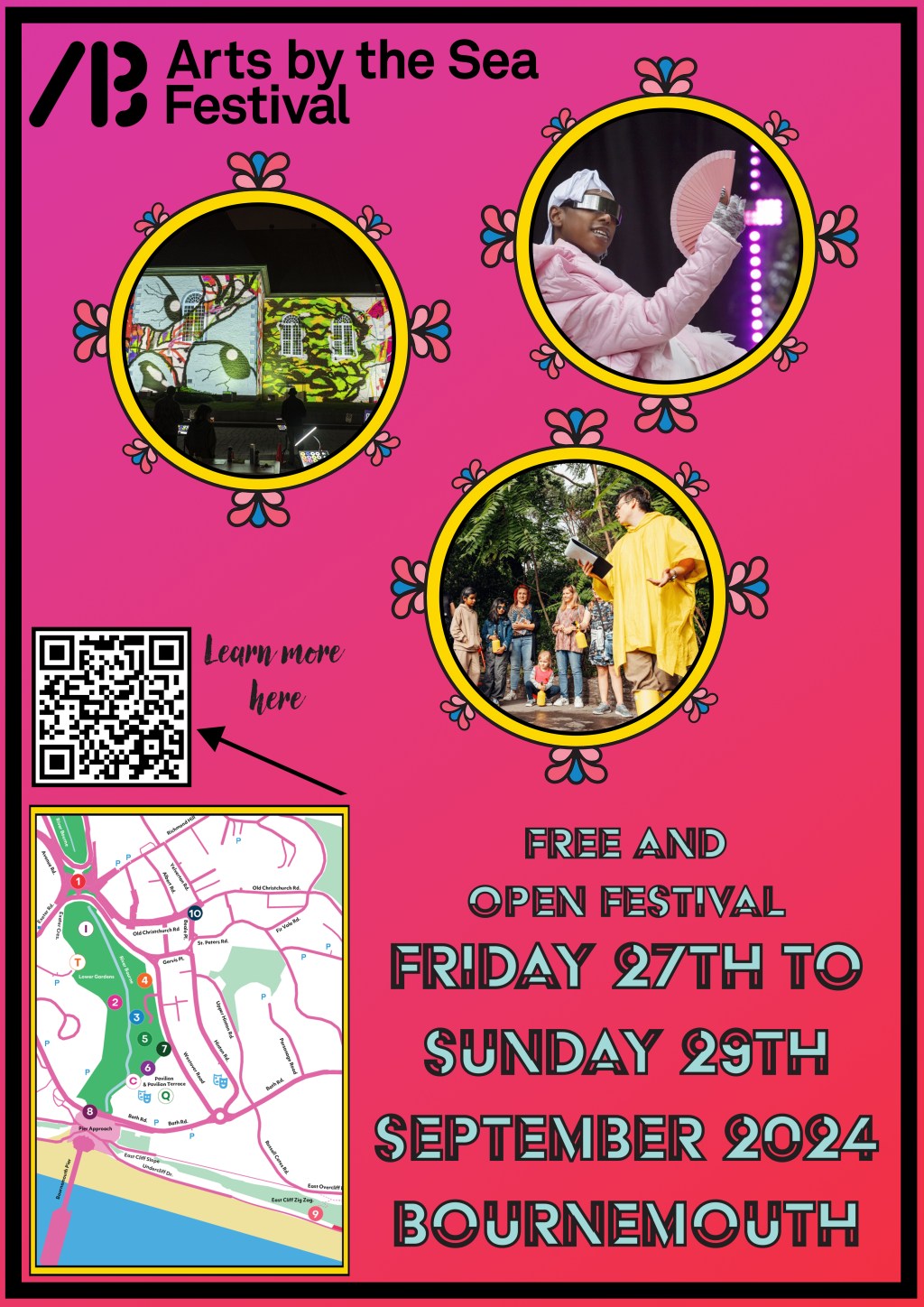
Photoshop Lesson 3: Poster

In this lesson we continued to look at layers as well as generally practice and demonstrate our existing skills in Photoshop. To do this we were assigned the task of creating a poster for the Arts by the Sea Festival. I first looked at the website and and took a sample of the colours and…